The Complete Videoconferencing Reference
A working reference for in-depth customer conversations — what each feature is, how it works, what a customer can actually do with it, and what's required to turn it on.
Zamok Connect at a glance
How it's built — and why that matters
It lives inside the kiosk's secure browser
Advanced Kiosks' run Zamok Kiosk Management software - a Chromium-based browser with no address bar, restricted internet access and self-service enhancement features. An administrator configures an allowed list and a blocked list through the Zamok dashboard, restricting the kiosk to a defined homepage and a set of approved sites. Zamok Connect's video widget is layered on top of that same restricted page — it is not a separate browsing context or meeting room.
That embedded design is the product's core advantage: the live help runs inside the kiosk's own secure page rather than in a separate app or meeting room, and the agent can share their screen to the visitor — walking them through a form, or completing a task in the agent's own system — while the visitor watches and verifies on the kiosk.
The differentiator versus a generic video tool is that the help is built into the kiosk's secure browser — no separate app, no install, no leaving the locked-down page — and the agent can drive a task by sharing their screen. Note the direction: the agent shares their screen with the kiosk user; the agent does not see the kiosk user's screen.
Communication layer
The in-call screen-share flow uses the browser's native screen-capture picker (the standard "Choose what to share" dialog with Chrome Tab / Window / Entire Screen options) — standard browser screen-capture, not a proprietary method.
The exact call transport (WebRTC or otherwise) has not been confirmed internally. Do not state the protocol as fact to a technical buyer — say "standard browser-based media" and route protocol-level questions to engineering.
The agent dashboard
A web application, independent of any kiosk, with three primary views:
The dashboard's color scheme and branding are configurable per customer rather than fixed to a single default theme.

How a session works, start to finish
Two paths today: the visitor presses a call-to-action (e.g. "I Need Assistance") and is routed to the next available agent — or an agent calls directly into a specific kiosk without waiting to be asked.
The agent's dashboard status changes (to "Unavailable") while the call is established, and the kiosk shows a connecting state before the agent's video appears.
Either party can end the call. If a visitor walks away, the agent ends the session manually — there's no timeout or facial-detection lock on the call itself.
Zamok's FaceLock (facial detection that secures sessions in other workflows) is deliberately not applied to Connect calls — the agent already has direct visual confirmation of the visitor through live video. If a buyer asks "how do you secure the session," that's the answer: a human is watching, in real time.
Baseline features — in depth
Everything below is included in the baseline tier and needs no hardware beyond camera, mic, and speaker.
Visitor-initiated connection
An on-screen call-to-action — commonly labeled something like "I Need Assistance" — that routes to the next available agent in the pool.

Press the button → the request enters the queue → it routes to the next available agent in the shared pool, who answers from the dashboard.
Place the help button anywhere in the kiosk flow — on the attract screen, or at a known drop-off step — and staff it with one shared agent pool covering many locations.
Agent-initiated connection
An agent can call directly into a specific kiosk without waiting for the visitor to request help.

From the Kiosks view, the agent selects a kiosk and starts the call. The kiosk shows a connecting state and the agent's video appears in the widget.
Proactively help someone an agent notices on monitored security cameras — or re-establish a call immediately after a network interruption drops it.
Embedded, expandable video widget
The call appears as a floating window overlaid on the existing kiosk homepage or webview — not a full takeover of the screen.

The visitor can expand it to full view or minimize it back down while continuing to use the underlying kiosk interface. The window carries its own mute, volume, and chat controls plus an end-call action.
Keep a visitor moving through their task while they talk; minimize to reference the page together; expand for a face-to-face moment. The kiosk stays usable the entire time.
Agent screen sharing & guided task completion
The agent can share their screen to the visitor — to show a document or set of instructions, or to complete a task directly within the agent's own system while the visitor watches and verifies.
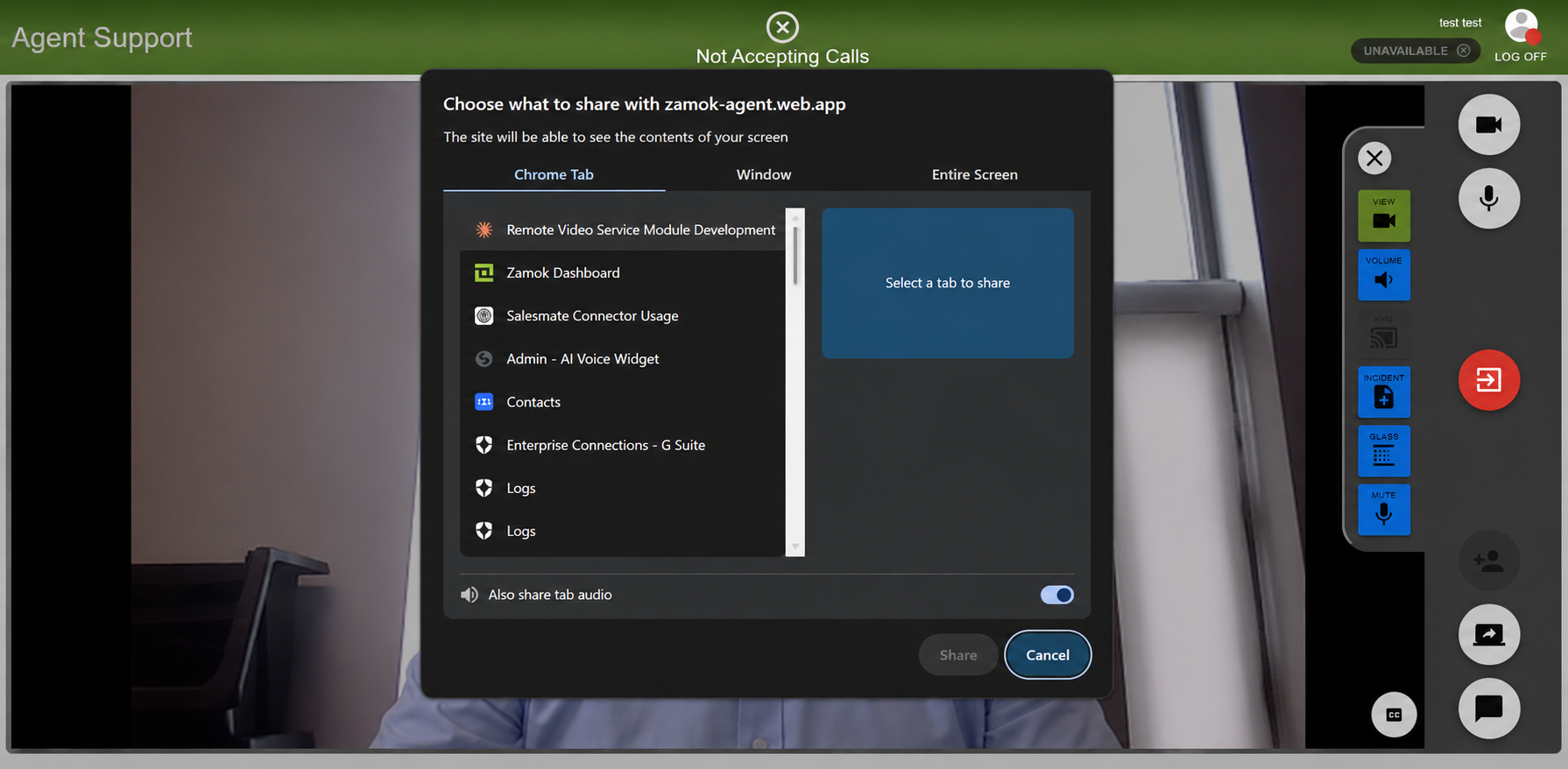
The agent uses the browser's native "Choose what to share" picker (tab, window, or entire screen) to stream their screen into the call.
Complete a registration or application in the agent's own back-office tool while the visitor confirms each step — no separate kiosk-side software required.
Screen sharing is agent → visitor only today. The visitor does not share their screen back. Don't describe it as "two-way" — position it as the agent driving a task while the visitor watches and verifies.
Standard call controls
Video on/off, mute, volume, text chat, and end call — available to the visitor in the kiosk widget and to the agent in the dashboard. These are the always-present controls regardless of which optional modules a kiosk has.
The agent dashboard (multi-kiosk, multi-agent)
A live operations view across every assigned location — Home (history + same-day stats), Kiosks (status & occupancy), and Agents (roster & availability).

One web dashboard reads live state from all kiosks and agents in the pool, so a single team can watch real-time activity and who's busy.
Run one agent pool across many sites, export call history for reporting, and brand the whole interface to the customer's organization.
Reporting & analytics
The platform captures anonymous call data and rolls it up in the same dashboard — no separate reporting tool. It records call volume, when calls happened, how long each lasted, and agent availability over time.

Each call's metadata — counts, timestamps, duration, and agent availability — is logged anonymously and surfaced in the dashboard's Home view, filterable by date range and exportable.
Staff to demand by seeing peak call times, justify ROI with volume and handle-time trends, and monitor agent coverage — all without collecting personally identifiable information.
This is the data a public-sector buyer needs to justify the spend: volume, timing, duration, coverage. Note that reporting is anonymous metadata — not call content or recordings — which is a clean story for privacy-sensitive verticals.
Conference in another agent
An agent on a call can bring a second agent (on another license) into the same call for added support — escalating to someone who has the answer, or handing the visitor off entirely.
The first agent conferences a second agent into the live call. The base video license already covers up to three participants (one kiosk, two agents); adding more agents means adding seats.
Pull in a subject-matter expert mid-call when the first agent doesn't know the answer, or warm-transfer the visitor to the right specialist — without dropping and re-queuing the call.
Position this as the tier-1 / tier-2 escalation path: front-line agents handle volume, experts get pulled in only when needed. The second agent consumes a license, so it's also a natural seat-expansion conversation.
The in-call control panel is adaptive
During an active call the agent has a control panel that has been observed to include View, Volume, KVM, Incident, Glass, and Mute. The panel is not static: controls for capabilities a given kiosk doesn't have are shown grayed out rather than hidden — the platform reads per-kiosk configuration flags and exposes only the controls relevant to that kiosk's installed hardware and licensed modules.

When walking a customer through a specific kiosk's panel, call it "adaptive, not fixed." A grayed-out control isn't a bug — it means that kiosk doesn't have that hardware or license yet, and it's the natural upsell path into the optional modules.
Optional modules — in depth
These extend the baseline tier and are tied to specific hardware and licensing. Each adds a control to the in-call panel on the kiosks that have it.
Remote Device Control (KVM)
Implemented as secure KVM-over-IP. Lets an agent access and control a visitor's connected device — for example a laptop plugged in via an interface cable at the kiosk — without the visitor installing any software.
The agent gains input and display access to the connected device directly through the dashboard, over IP — no agent or driver installed on the visitor's machine.
Take over a plugged-in laptop to fix a setting, drive an application, or complete a step the visitor can't — while they watch on the same screen.
Pan-Tilt-Zoom (PTZ) Camera
An overhead camera, separate from the standard front-facing camera, that the agent controls through the View toggle to switch feeds and zoom in on physical detail.
The agent uses View to switch from the face-facing camera to the overhead PTZ camera and pan, tilt, or zoom on demand.
Read a serial number, inspect a port, or document visible damage on a device or object the visitor holds up — useful for returns, repairs, and verification.
Smart Glass Privacy
A physical privacy glass panel built into specific enclosures (the Aegis Booth) that switches between transparent and frosted/opaque states.
Two trigger paths: automatically via motion sensors in the booth (general privacy and loitering management), and manually via the agent's Glass control during a call.
Give a visitor visual privacy on demand — the agent frosts the glass for a sensitive moment in a transaction, then clears it again.
Ticketing Integration
A ServiceNow integration triggered through the Incident control, letting an agent create a ticket directly from an active call.
The agent presses Incident during the call and a ticket is created in ServiceNow — no switching to a separate system.
Log an issue or follow-up the moment it comes up on a call, keeping the agent's hands on the conversation instead of paperwork.
Document Handling
Document scanning, printing, and signature capture are provided by Zamok's broader document workflow system — used alongside a Connect call rather than being a feature of Connect itself.
Configurable scan instructions, multi-step forms, file distribution, and reporting run in the Zamok document system while the call is live.
A Trust Officer sends a document to the kiosk printer for signature and receives the scanned original back — all within the same session.
Agent-initiated document scanning and file share / printing is a workflow we have previously supported, but it is not currently available. Scope and timeline it with engineering before committing.
Payment Processing
Provided by Zamok's existing Payment Module (card swipe, EMV/contactless, autofill into web forms), used in conjunction with a call rather than built into Connect itself.
The visitor settles a payment at the kiosk's payment device while the agent guides the transaction over the call.
A clerk processes a payment remotely — the visitor taps or swipes at the kiosk — closing a transaction live, end to end.
Agent-initiated payments using the kiosk hardware require custom development — this is not fully available out of the box today. What an agent can do now is process a payment "over the phone" using their own processor during the call. Position the kiosk-hardware path as a custom build.
Call Recording & Storage
Call recording is available but not yet fully implemented. Backend support for call routing, recording, and note-taking exists, with the surrounding workflow — storage, retrieval, and consent handling — still being completed.
Recording capability exists but the full workflow isn't finished — don't present it as turnkey. If a buyer needs recording (e.g. for manager review or compliance), capture the requirement and confirm current state, storage, retention, and consent handling with engineering before committing.
Security & compliance
Calls take place inside Zamok's existing locked-down browser environment, inheriting its web filtering and restricted navigation. Zamok's general platform design avoids storing personally identifiable information and limits data collection to anonymous usage and session logs for non-video features.
Whether that same no-PII posture extends to video/audio content or to documents exchanged during a call has not been confirmed. For verticals with strict data handling (law enforcement, courts, healthcare), treat it as an open question to resolve with engineering — don't assert a compliance posture you can't back.
Known limits & how to handle them
Know these before the customer raises them. Disclosing the relevant ones early builds trust and avoids a procurement surprise.
Presence sensors already trigger other actions (e.g. Welcome Video), but the integration that auto-starts a live Connect call from presence detection isn't built. Today, calls start by micro-controller motion sensor, visitor request or agent action.
A fully unattended, mobile-alert deployment model (built for single-operator storage) saw limited adoption. Position the dashboard as a desktop operations tool.
A platform-level constraint, not specific to Connect — but directly relevant to law-enforcement and court use cases. Disclose it early in those conversations rather than letting it surface in procurement review.
Specific workflows for these verticals haven't been defined. Treat them as exploratory with the prospect rather than validated, productized flows.
Four items aren't yet settled and should be confirmed before stating as fact: (1) the underlying call transport protocol; (2) recording scope, storage, and consent handling; (3) whether video/audio/document content falls under the no-PII policy; (4) whether the KVM/PTZ/Glass/Ticketing set is marketed under the Zamok Connect name or a separate one.
Feature matrix — what's needed for what
A reference scan of what's in the baseline tier, what's optional, and what each one requires.
| Feature | Tier | What it requires |
|---|---|---|
| Embedded video widget | Baseline | Camera, mic, speaker |
| Visitor- & agent-initiated calls | Baseline | Video license |
| Agent screen sharing | Baseline | None beyond baseline |
| Agent dashboard (multi-kiosk/agent) | Baseline | Video license; seats to scale |
| Reporting & analytics (anonymous) | Baseline | None beyond baseline |
| Conference in another agent | Baseline | An additional agent seat / license |
| Remote Device Control (KVM) | Optional | KVM-over-IP hardware + license |
| PTZ camera inspection | Optional | Overhead PTZ camera |
| Smart glass privacy | Optional | Aegis Booth enclosure |
| Ticketing integration | Optional | ServiceNow integration |
| Document handling | Optional | Zamok document workflow + scan/print hardware. Agent-initiated scan / file-share / print needs development. |
| Payment processing | Optional | Zamok Payment Module + payment device. Agent-initiated payment on kiosk hardware needs custom development; "over the phone" works today. |
| Call recording & storage | Partial | Available, not fully implemented — confirm storage & consent |