
Third-Party Applications
Connect Your Kiosk to the Software Your Organization Already Uses
Zamok Kiosk Management Software creates a secure, managed environment where public users can access approved third-party platforms directly from the kiosk screen. No unmanaged browser. No open computer. No leftover session data.
- Restrict access to approved portals and applications only
- Session resets automatically after every use
- Add, remove, or update approved apps remotely from your desktop
- Pair with form fill, scan, and payment tools in a single workflow
Why Organizations Use Kiosks for Third-Party Application Access
Residents Get Access Without a Staff Member
Visitors can reach benefits portals, case management tools, or payment systems entirely on their own, even outside business hours.
Your IT Team Controls What Is Accessible
Zamok locks the kiosk to a defined list of approved URLs and applications. Nothing outside that list is reachable.
No Data Is Left Behind
Automatic session resets clear all credentials, history, and personal data between users.
Locked-Down Browser Environment
Users navigate only within the applications your administrators have approved. No open web access.
Remote App Management
Update the approved application list from any desktop without touching the physical kiosk.
FaceLock Session Security
If a user steps away, Zamok detects the absence and starts a countdown to clear the session automatically.
AES-256 Encryption
All data in transit and at rest is encrypted. Compliant with HIPAA, FERPA, and PCI-DSS standards.
Multilingual Interface
Kiosk interface supports multiple languages, ensuring consistent access regardless of the user’s primary language.

Support Complex Public Workflows from a Single Kiosk
Third-party application access becomes even more powerful when combined with other Zamok kiosk capabilities.
Organizations can create complete self-service workflows that guide users through every step without staff intervention.
A visitor can:
- Start a guided intake form
- Scan identification or supporting documents
- Access a third-party website or portal
- Upload files directly into that system
- Complete a payment transaction
- Print receipts or confirmation documents
- Automatically log out and reset the kiosk for the next user
The result is a seamless self-service experience that reduces lobby congestion, shortens wait times, and allows staff to focus on higher-value interactions instead of repetitive front-desk assistance.































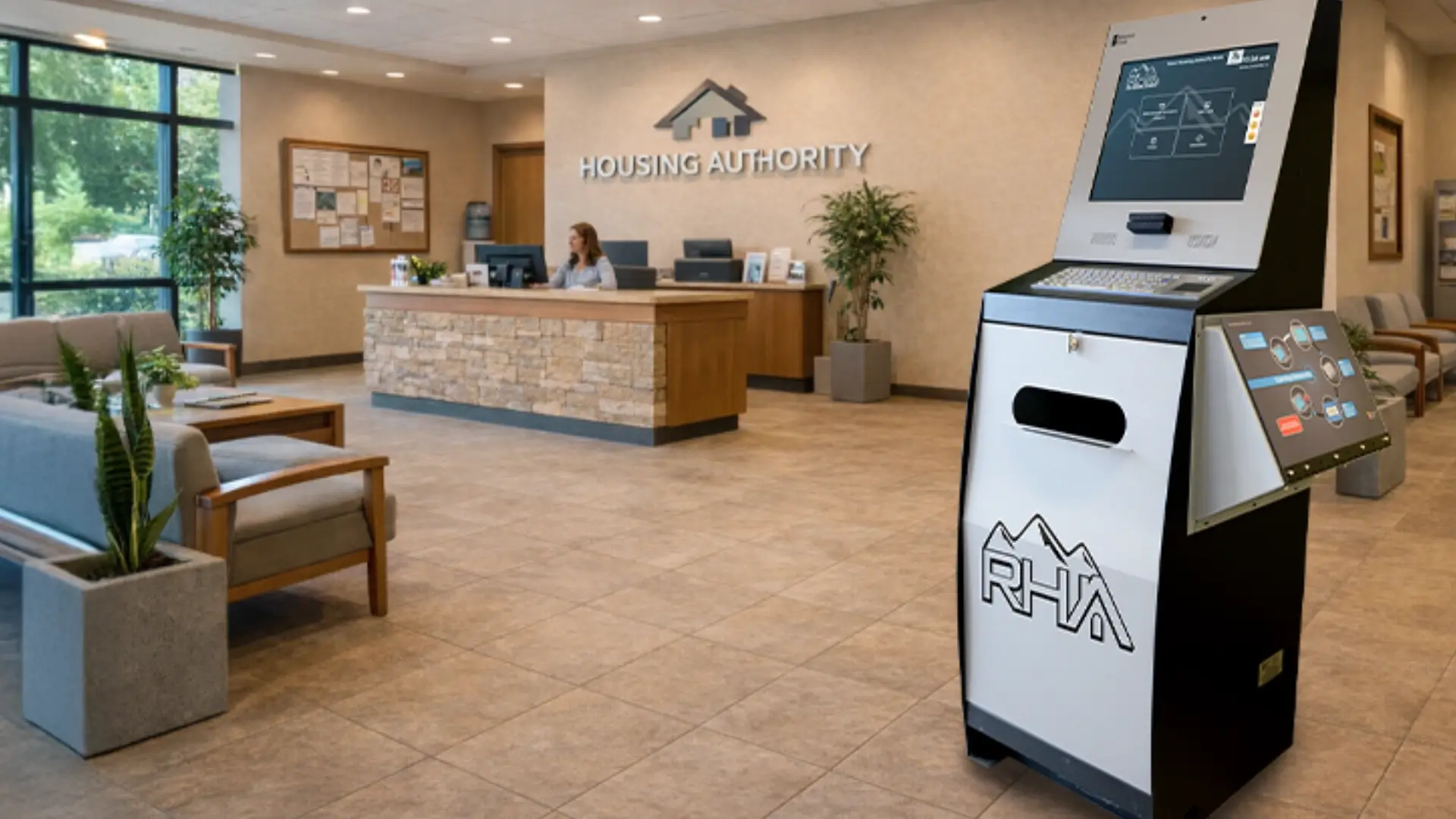
Housing Authorities
Connect residents to state benefits portals, maintenance request tools, and assistance applications without staff involvement.

Government Agencies
Provide secure access to permit systems, licensing portals, and citizen service platforms around the clock.

Human Resources
Let employees access HR platforms, onboarding software, and benefits enrollment tools from a secure kiosk station.

Healthcare
Give patients access to patient portals, intake systems, and insurance tools in a HIPAA-compliant kiosk environment.
Why Organizations Are Turning to Digital Kiosks
Modern organizations need efficient, reliable, and accessible 3rd party application solutions.
Secure by Default
Every session is isolated. Users cannot access anything outside the approved list.
24/7 Availability
Public users can access services outside of staffed office hours without any intervention.
Remote Management
Add or remove approved apps from your desktop. Updates reflect on the kiosk immediately.
No Staff Required
Self-service design frees staff for complex tasks that genuinely require human attention.
Compliance Ready
Built to meet HIPAA, FERPA, and PCI-DSS requirements out of the box.
Multilingual Support
Serve diverse communities with a kiosk interface that adapts to the user’s preferred language.
How It Works
A straightforward self-service process from start to finish.

Approach & Select
User approaches the kiosk and selects the application or portal they need from the approved menu.
Complete the Task
The user interacts with the third-party platform within the secure, managed kiosk environment.

Submit or Log Out
The user completes their transaction or logs out of the platform when finished.

Session Resets
Zamok clears all session data automatically, preparing the kiosk for the next user.
Frequently Asked Questions
Common questions about third-party application access on kiosks.
Can we restrict access to only specific websites or portals?
Yes. Zamok allows administrators to define an approved list of URLs and applications. Users cannot navigate to anything outside that list from the kiosk.
What happens to user data after a session ends?
Zamok automatically clears all session data, including login credentials, browser history, and any entered information, after each session ends or after a configurable inactivity timeout.
How do we add or remove approved applications?
Administrators manage the approved application list remotely from any desktop browser. Changes are pushed to the kiosk in real time without requiring a physical visit to the hardware.
FROM OUR BLOG
What Every Organization Should Know Before Implementing AI
Artificial intelligence is rapidly moving from experimentation to implementation across…

Read Our Latest 2026 Newsletter!
Our latest newsletter is packed with updates from the field,…
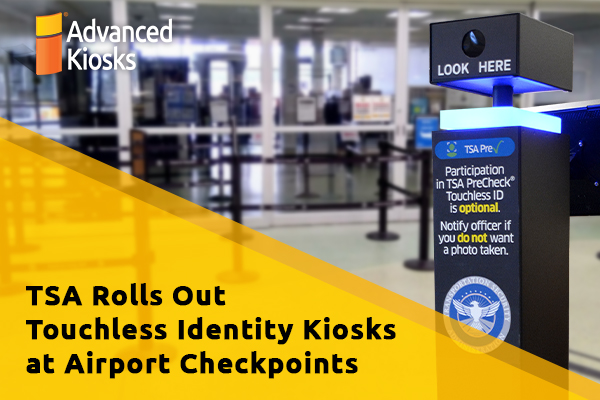
TSA Rolls Out Touchless Identity Kiosks at Airport Checkpoints
Moving millions of passengers safely through airport security requires more…

Outdoor Kiosks: Answers to the 10 Most Common Questions
As organizations look to bring services outside the traditional lobby,…
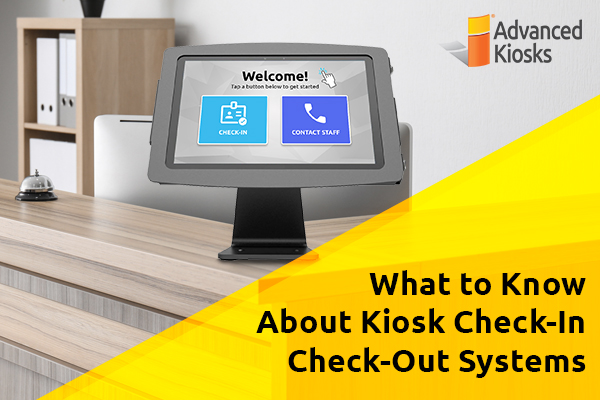
What to Know About Kiosk Check-In/Check-Out Systems
If you\'ve visited a modern government building, healthcare facility or…