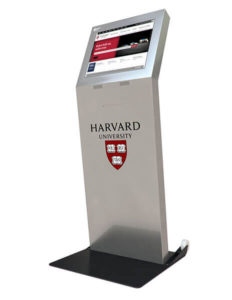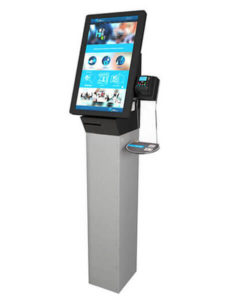


If the touchscreen is not being detected on an iKiosk:
- Unplug the USB labelled “Touchscreen” from the computer
- Wait 30 seconds
- Plug it back in
If the problem persists:
- Unplug the USB labelled “Touchscreen” from the computer
- Wait 30 seconds
- Plug it back in to a DIFFERENT USB port
If the problem persists:
- Restart the Computer
- Unplug the USB labelled “Touchscreen” from the computer
- Wait 30 seconds
- Plug it into a USB 3 port (blue) vs. a USB 2 port (black) if applicable
If the problem persists, open a technical support ticket HERE for further trouble shooting tips.